
Besides the flight category colours, your map can show the current weather at each airport: lightning flashes, rain, freezing rain, snow, fog or haze, and dust, sand or ash. Each effect can be switched on or off separately.
Open your map’s settings #
- On a phone or computer that is on the same WiFi as your map, open a web browser.
- Go to
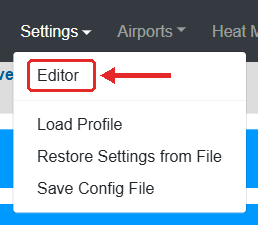
http://<map name>.local(the name you wrote down during the WiFi setup) orhttp://<IP address>, for examplehttp://192.168.1.50. If you don’t know the IP address, see how to find the IP address of your PilotMap. Some Android phones can’t open.localnames; use the IP address there. - In the menu at the top, move the mouse over Settings and click Editor.
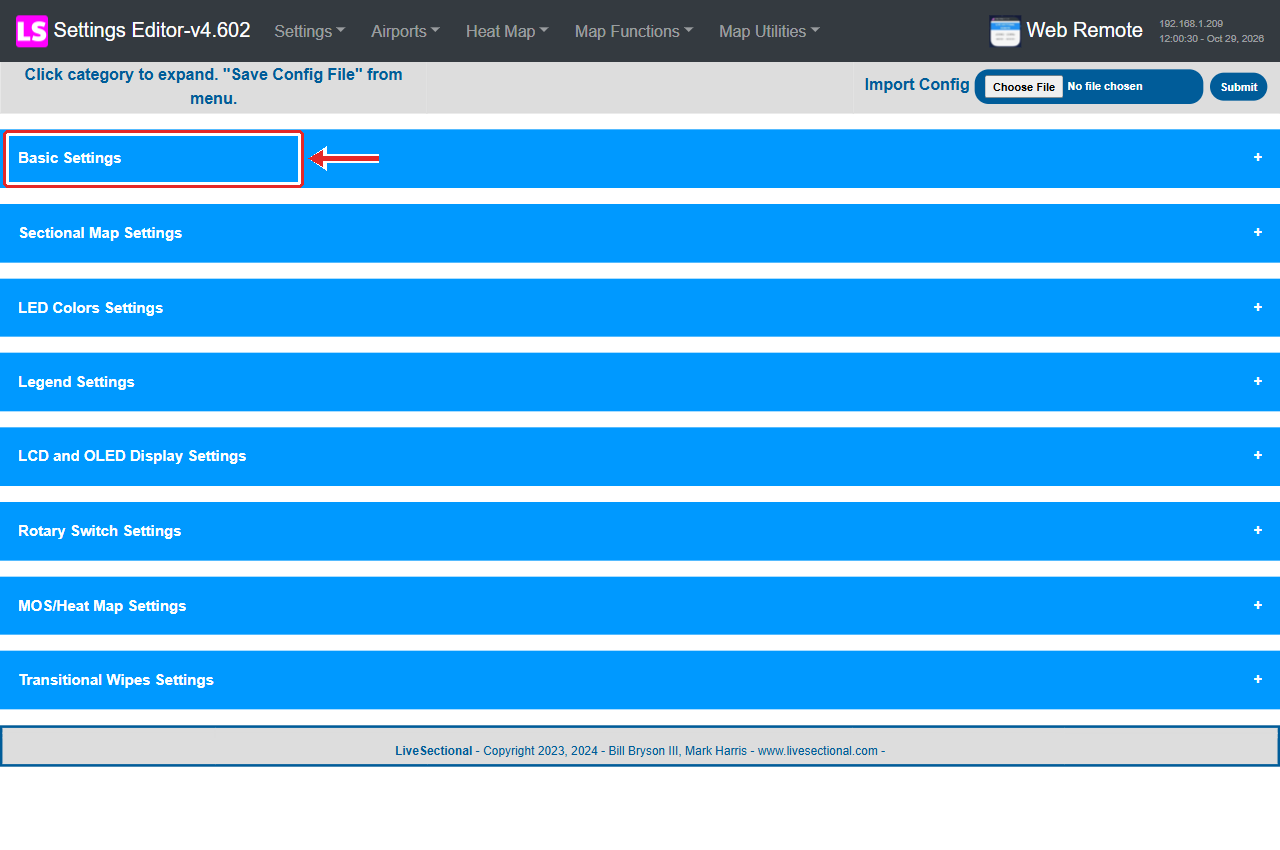
- Click a blue bar to open that group of settings.
Choose the effects #
- Open Sectional Map Settings.
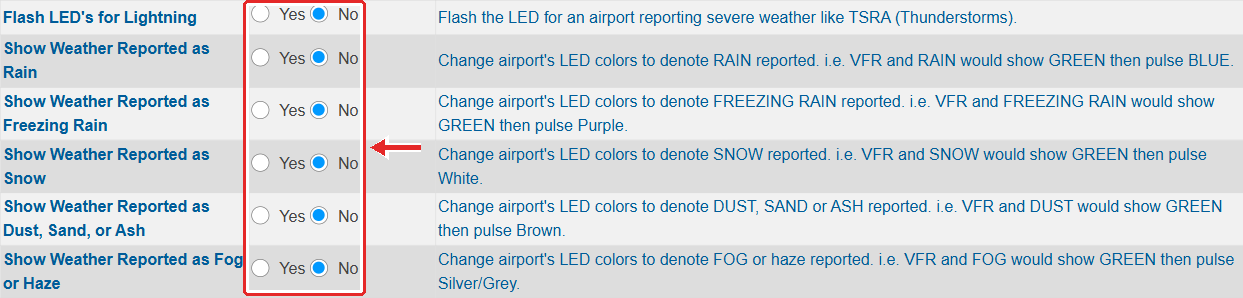
- Set each effect to Yes (shown) or No (not shown):
- Flash LED’s for Lightning
- Show Weather Reported as Rain
- Show Weather Reported as Freezing Rain
- Show Weather Reported as Snow
- Show Weather Reported as Dust, Sand, or Ash
- Show Weather Reported as Fog or Haze
Save #
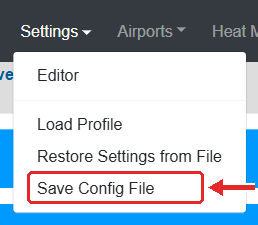
- In the menu at the top, move the mouse over Settings and click Save Config File. You will see Settings Successfully Saved.
- That’s it. The map restarts its weather display by itself and shows the new setting within a minute or two. While it restarts, the legend may show all green for a moment (that is the normal “starting” status). You don’t need to unplug it.
Tip: changes are only kept after Save Config File. If you close the page before saving, nothing changes.
The colours used for each effect can be changed too, see how to change the LED colours.


