
Your map keeps its settings in three small files: the config file (brightness, colours, timer and all other settings), the airports file (which airport is on which LED) and the heat map file. Download a copy before you change anything and again once you are happy with your changes. If something goes wrong, or after an SD card update, you can load them back in a minute.
Download the files #
- Open your map’s page at
http://<map name>.localorhttp://<IP address>(see how to find the IP address). Use a computer if you can: files are easier to keep there than on a phone. - In the top menu, move the mouse over Map Utilities.
- Click Download Config File, then Download Airports File, then Download Heat Map File. Each click saves one file to your Downloads folder.
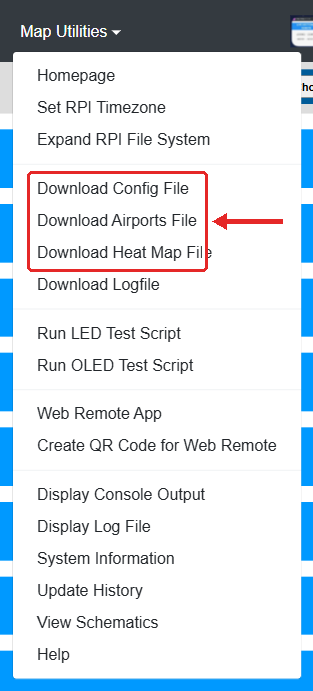
The files are called config.py, airports and hmdata. Your browser may add a number if a file with that name is already there.
Keep them safe #
- Move the three files into one folder and give it a name with the date, for example
PilotMap backup 2026-10-29. - Don’t open and save them in Word or another editor; that can change them. Just keep them as they are.
- A copy in cloud storage (iCloud, Google Drive, OneDrive, Dropbox) or in an email to yourself means you still have them if your computer breaks.


