
Your PilotMap can switch its LEDs off at night and back on in the morning by itself. The map stays connected and keeps receiving weather while it sleeps.
1. Check the time zone first #
The timer uses the map’s own clock, so the time zone must be right.
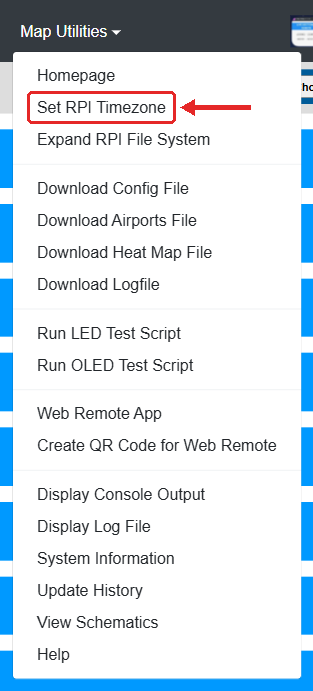
- Open your map’s page (see the steps in part 2) and, in the top menu, move the mouse over Map Utilities and click Set RPI Timezone.
- Check Local time. If it is wrong, choose your time zone from the list (for example
America/Chicago) and click Select.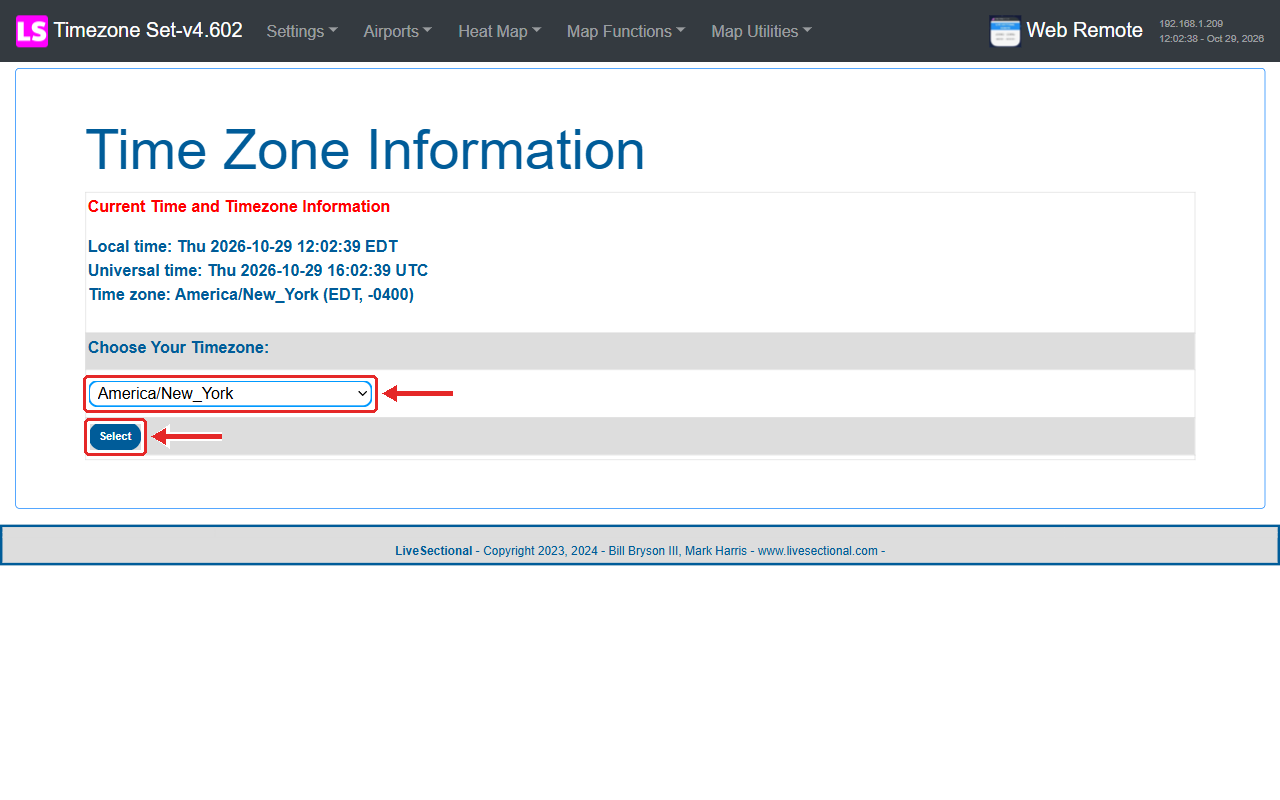
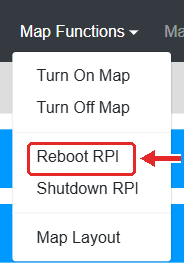
- After changing the time zone, go to Map Functions and click Reboot RPI. The map is back after about 2 minutes.
2. Set the on and off times #
Open your map’s settings #
- On a phone or computer that is on the same WiFi as your map, open a web browser.
- Go to
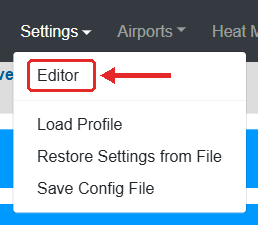
http://<map name>.local(the name you wrote down during the WiFi setup) orhttp://<IP address>, for examplehttp://192.168.1.50. If you don’t know the IP address, see how to find the IP address of your PilotMap. Some Android phones can’t open.localnames; use the IP address there. - In the menu at the top, move the mouse over Settings and click Editor.
- Click a blue bar to open that group of settings.
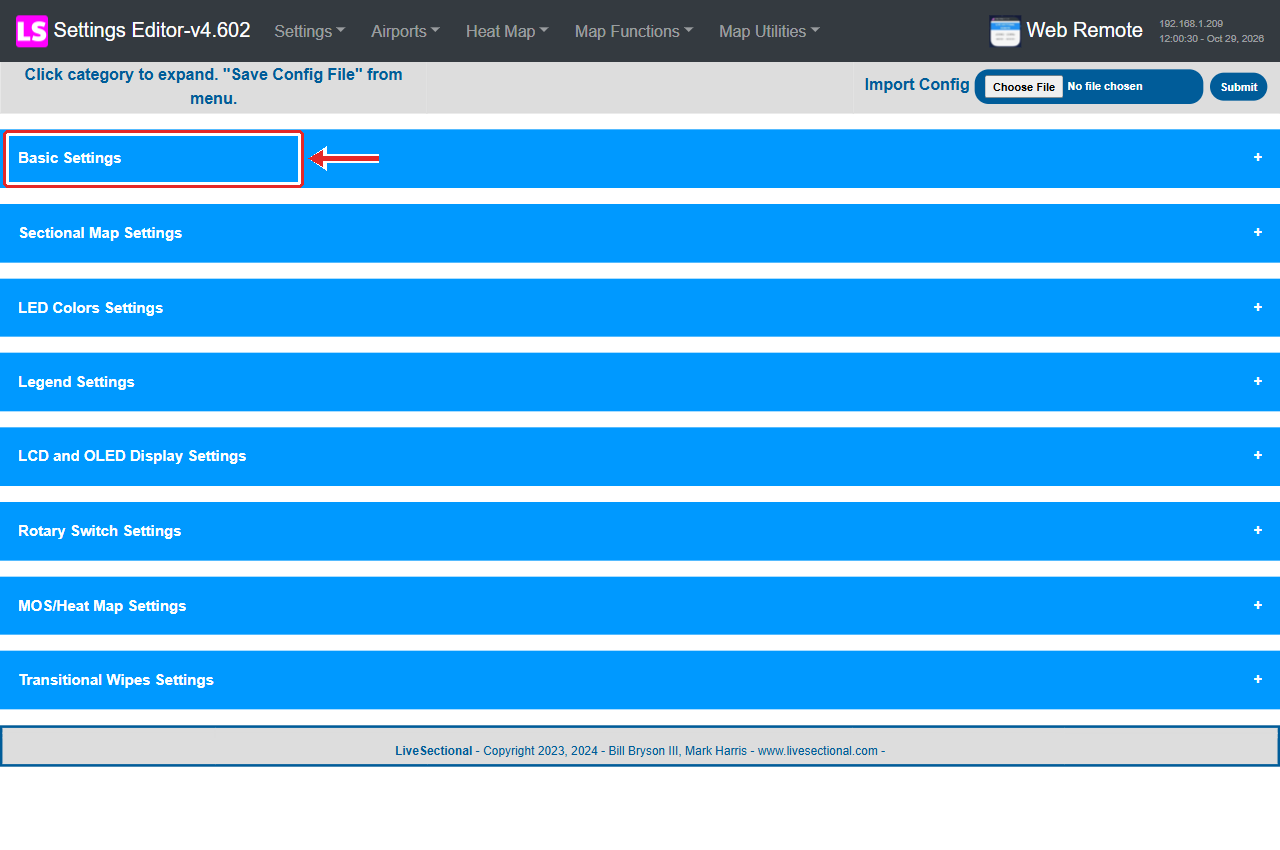
- Open Basic Settings.
- Set Use On/Off Timer to Yes.
- Enter Time Off and Time On in 24-hour format: hours in the first box, minutes in the second. For example 10:30 pm is
22:30, and 7 am is7:0.
- Sleep Interrupt Time only matters if your map has a push button: pressing it during the night turns the map on for this many minutes.
- Display ‘Sleeping’ Message is only for maps with a small OLED or LCD display.
Save #
- In the menu at the top, move the mouse over Settings and click Save Config File. You will see Settings Successfully Saved.
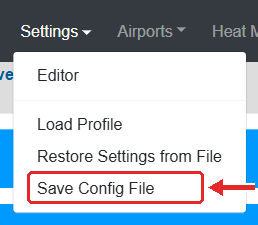
- That’s it. The map restarts its weather display by itself and shows the new setting within a minute or two. While it restarts, the legend may show all green for a moment (that is the normal “starting” status). You don’t need to unplug it.
Tip: changes are only kept after Save Config File. If you close the page before saving, nothing changes.
To keep the map on all the time again, set Use On/Off Timer back to No and save.


