
Make your home airport easy to spot: it can blink in a marker colour, cycle through colours, or simply stay brighter while all other airports are dimmed.
1. Find your airport’s LED number #
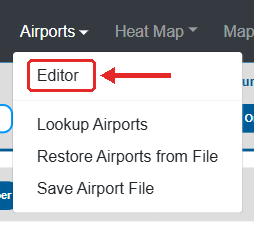
- Open your map’s page (see the steps in part 2) and, in the top menu, move the mouse over Airports and click Editor.
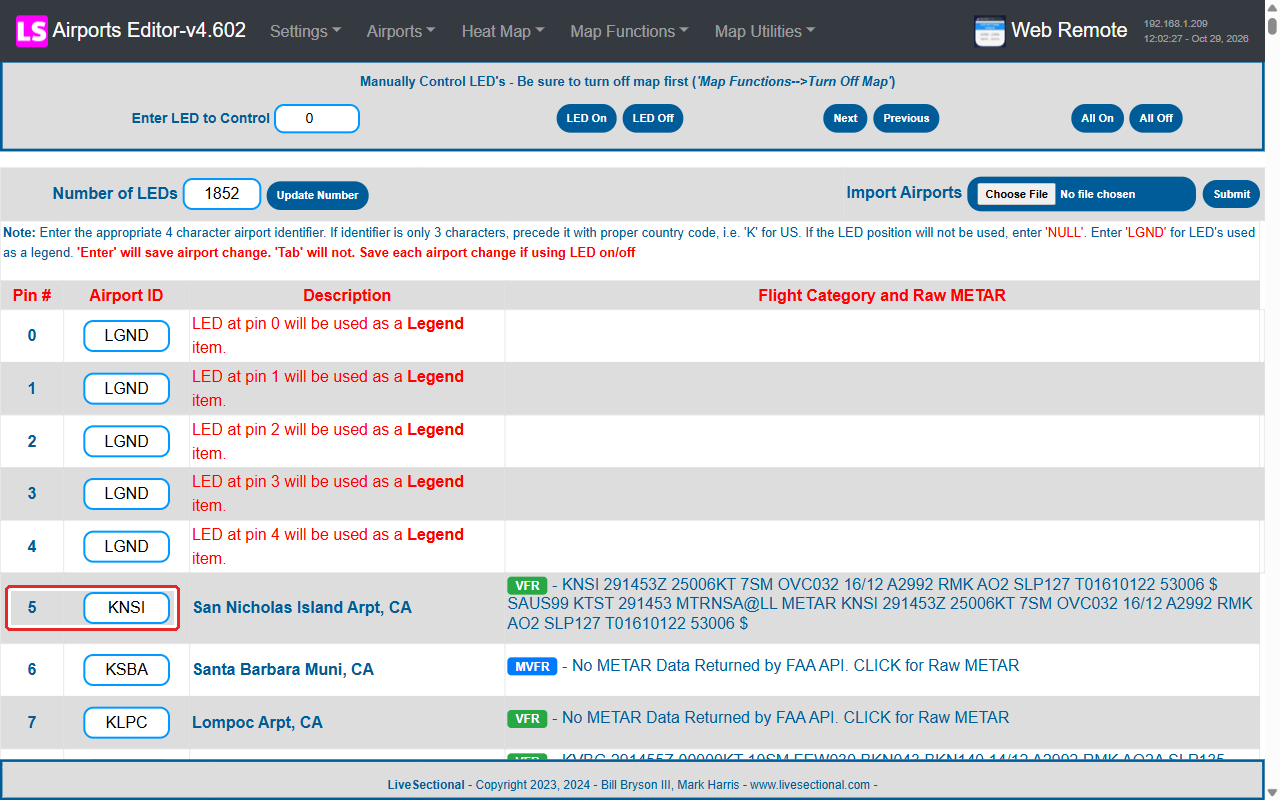
- Find your airport in the Airport ID column and note the number in the Pin # column next to it. Only look; you don’t need to change or save anything on this page.
2. Turn on the home airport feature #
Open your map’s settings #
- On a phone or computer that is on the same WiFi as your map, open a web browser.
- Go to
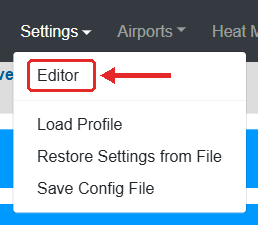
http://<map name>.local(the name you wrote down during the WiFi setup) orhttp://<IP address>, for examplehttp://192.168.1.50. If you don’t know the IP address, see how to find the IP address of your PilotMap. Some Android phones can’t open.localnames; use the IP address there. - In the menu at the top, move the mouse over Settings and click Editor.
- Click a blue bar to open that group of settings.
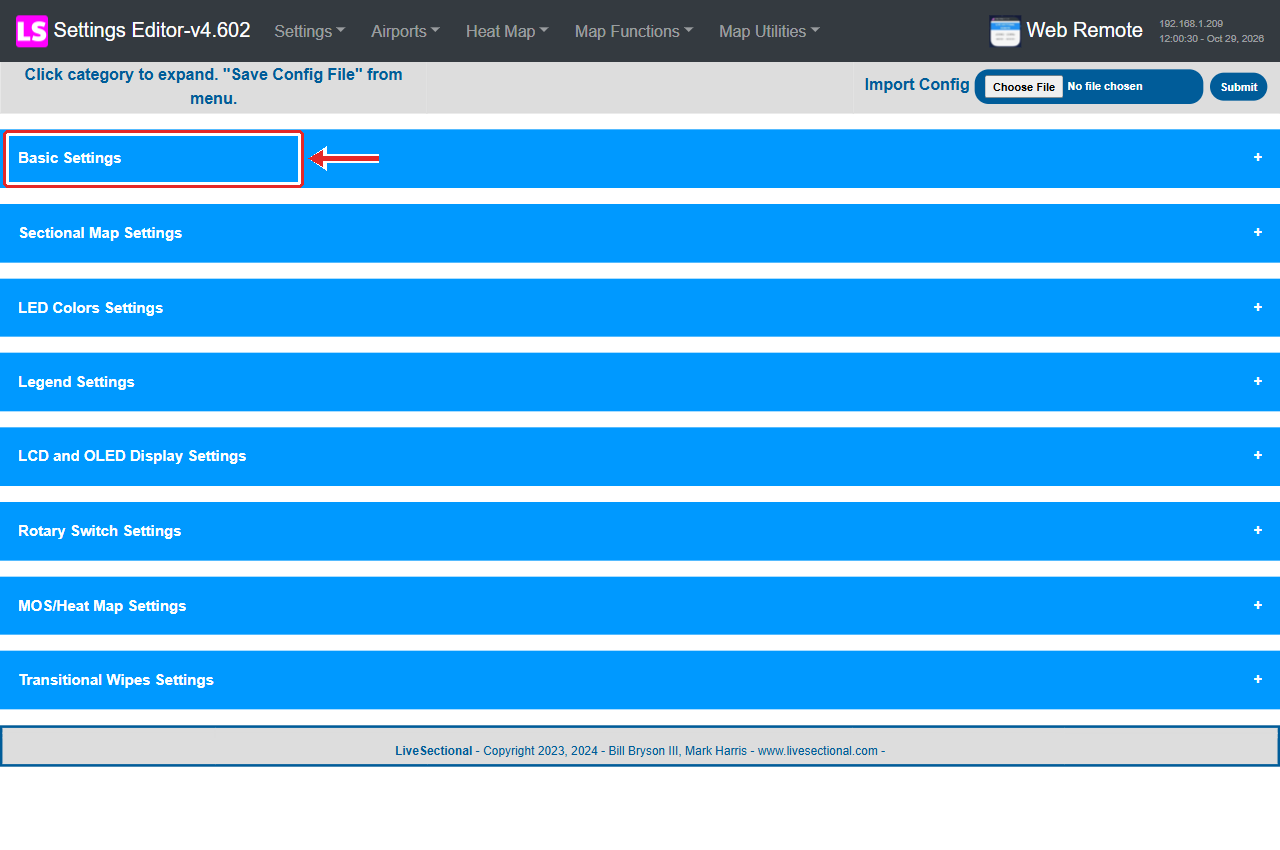
- Open Sectional Map Settings.
- Set Turn On Home Airport Feature to Yes and enter your airport’s number in Home Airport Pin.
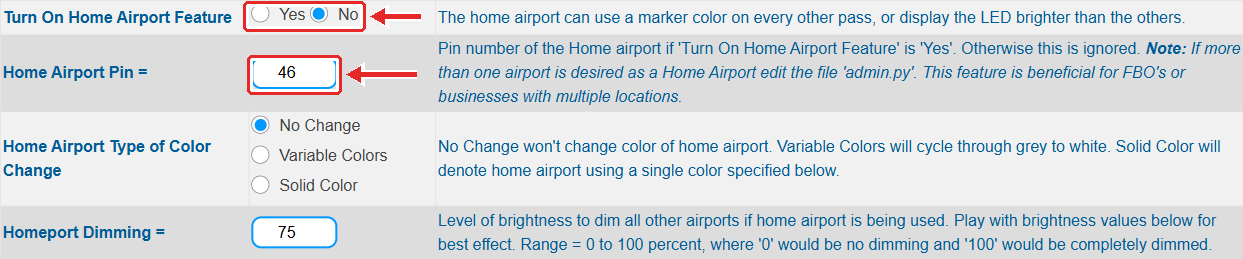
- Choose how it is shown in Home Airport Type of Color Change:
- No Change: your airport keeps its weather colour; it stands out because the others are dimmed (next step).
- Variable Colors: your airport cycles through a set of colours.
- Solid Color: your airport switches between its weather colour and a marker colour. The marker colour is Home Airport Marker Color under LED Colors Settings.

- Homeport Dimming dims all other airports:
0= no dimming,100= others completely off. Around 50 to 75 works well.
Save #
- In the menu at the top, move the mouse over Settings and click Save Config File. You will see Settings Successfully Saved.
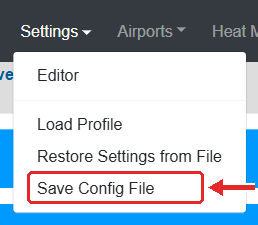
- That’s it. The map restarts its weather display by itself and shows the new setting within a minute or two. While it restarts, the legend may show all green for a moment (that is the normal “starting” status). You don’t need to unplug it.
Tip: changes are only kept after Save Config File. If you close the page before saving, nothing changes.


